Website
Here at brethren.org, find the rectangle that says “Translate” near the bottom right.
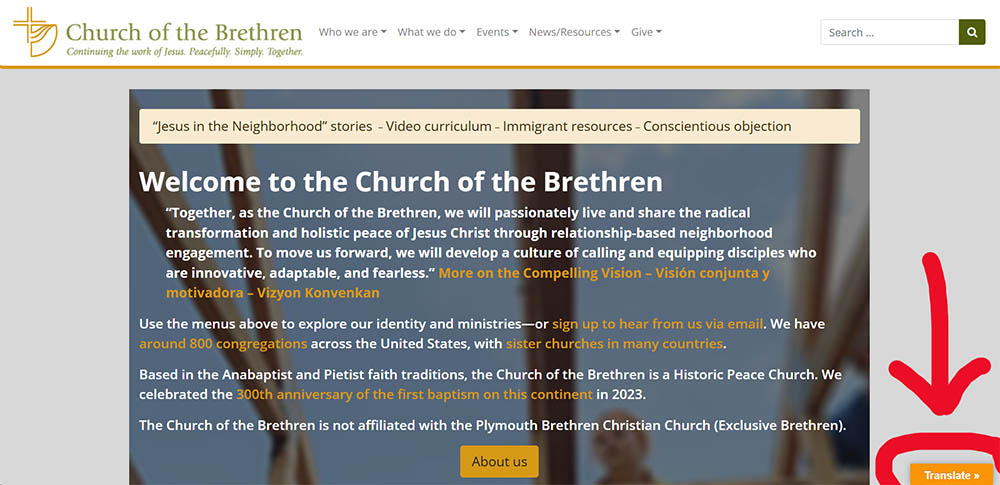
When you press the button, flags appear:
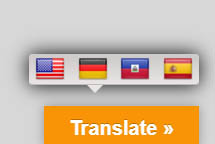
Choose English, German, Haitian Creole, or Spanish; press the flag representing the language. The page should change into that language.
To change to a different language, repeat this process.
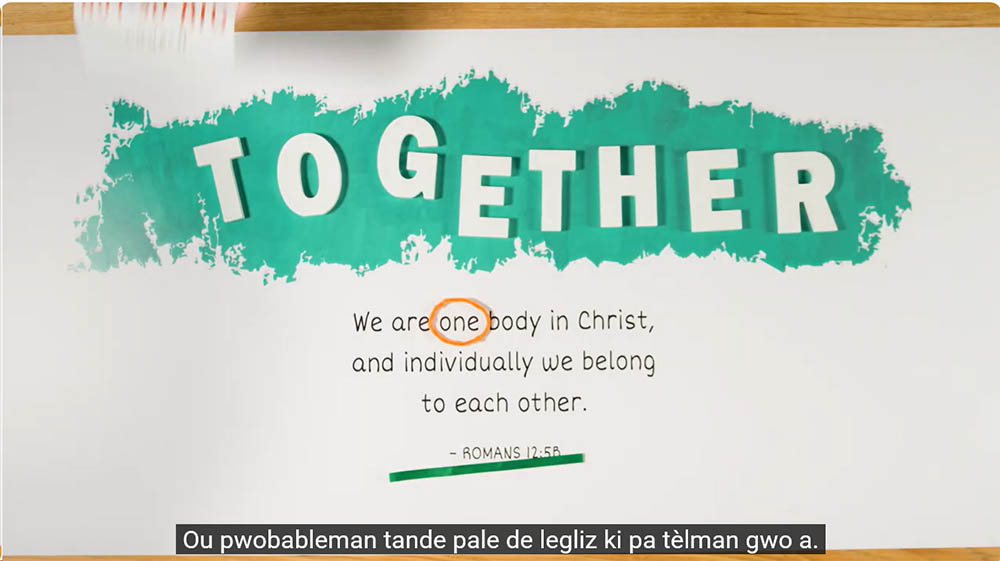
YouTube Video Subtitles
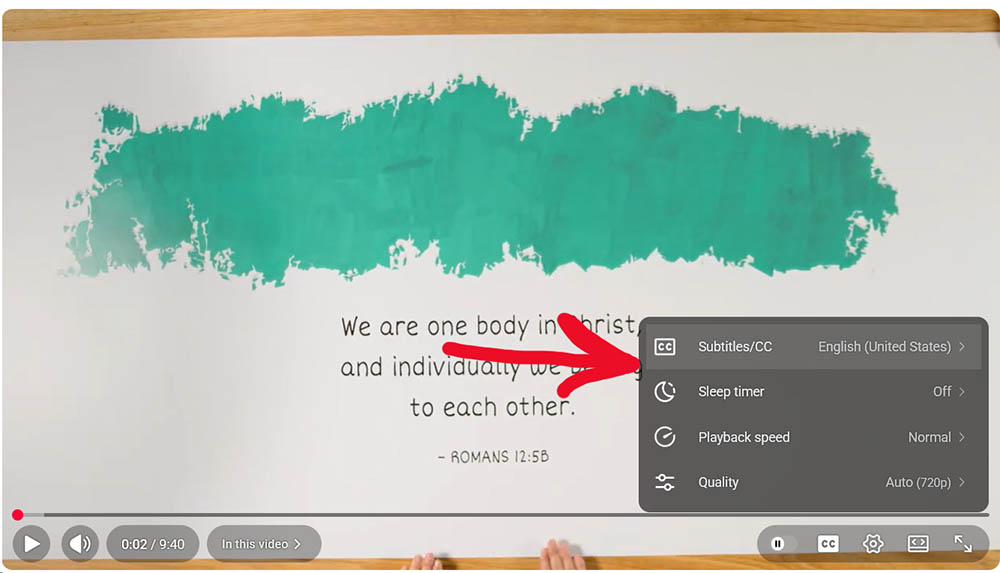
Go to the Church of the Brethren YouTube channel. Choose a video and move your mouse over the video or use the up arrow (^) so that the tools show. Press the icon that looks like a gear. Look for “Subtitles,” normally the top item.
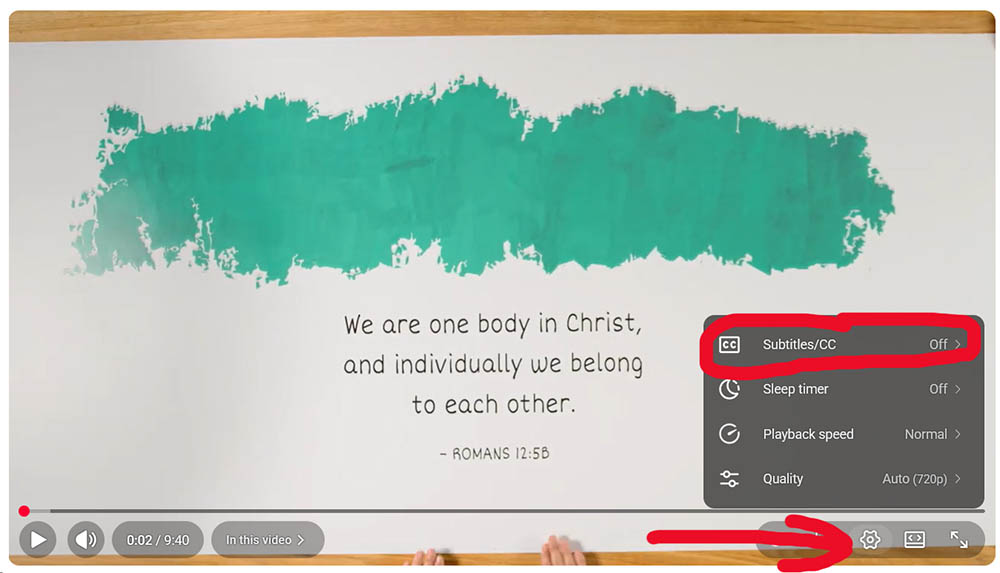
Press or click “Subtitles”. You will see two options: Off and English. Choose English.
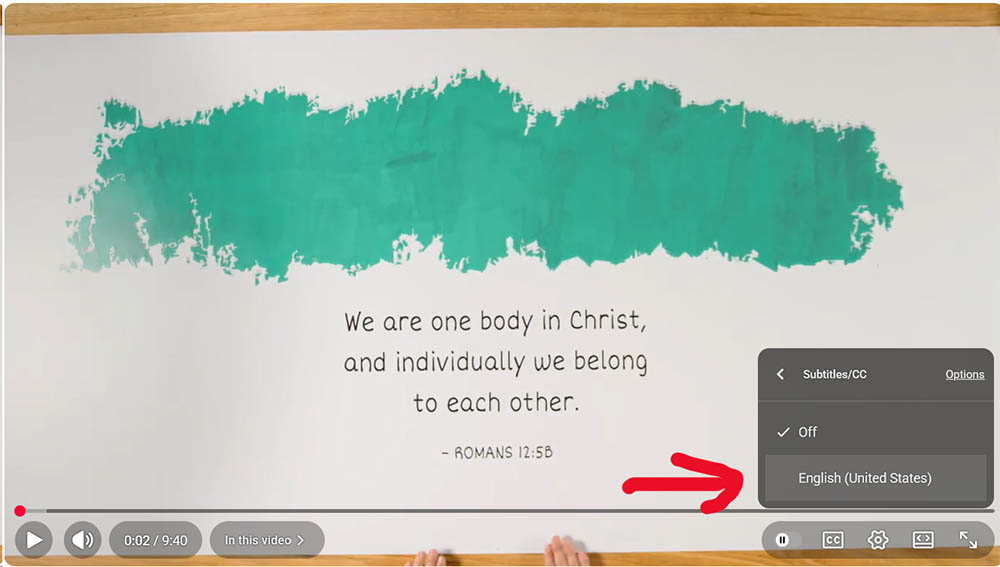
Click or press “English”. You will see the menu you saw earlier, with “Subtitles” near the top. But now it says “English” instead of “Off.”
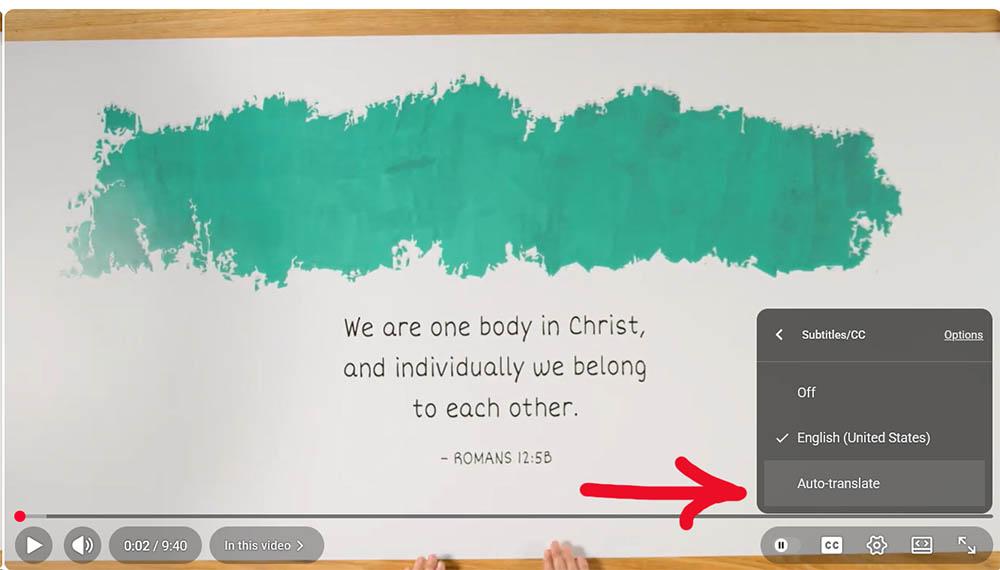
Choose (click or press) Subtitles again. Now you have the option to “Auto-translate.”
Choose (click or press) the Auto-Translate option and scroll down until you find the language you want. (Not all languages are available; this is a YouTube issue.)
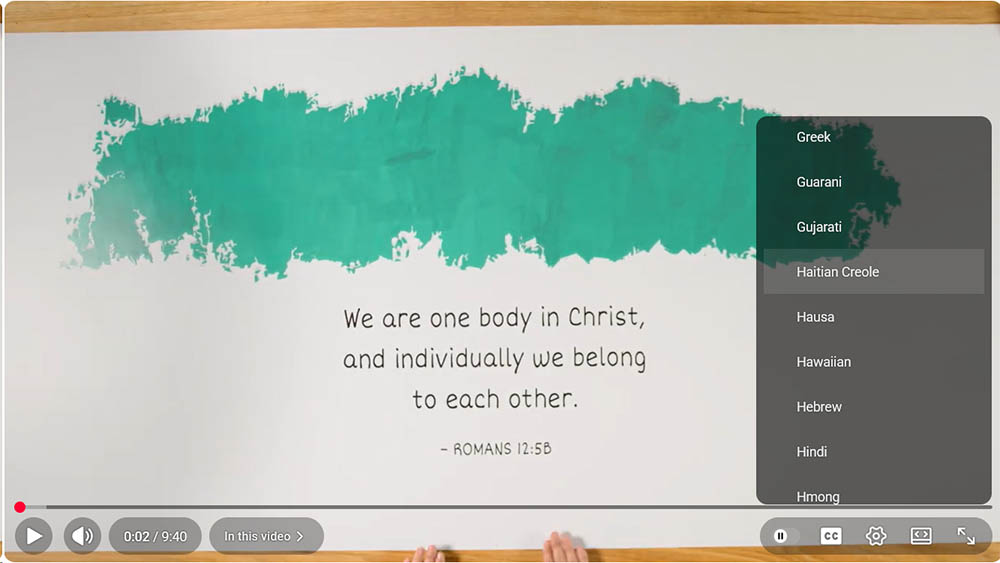
Enjoy subtitles in the language you choose!